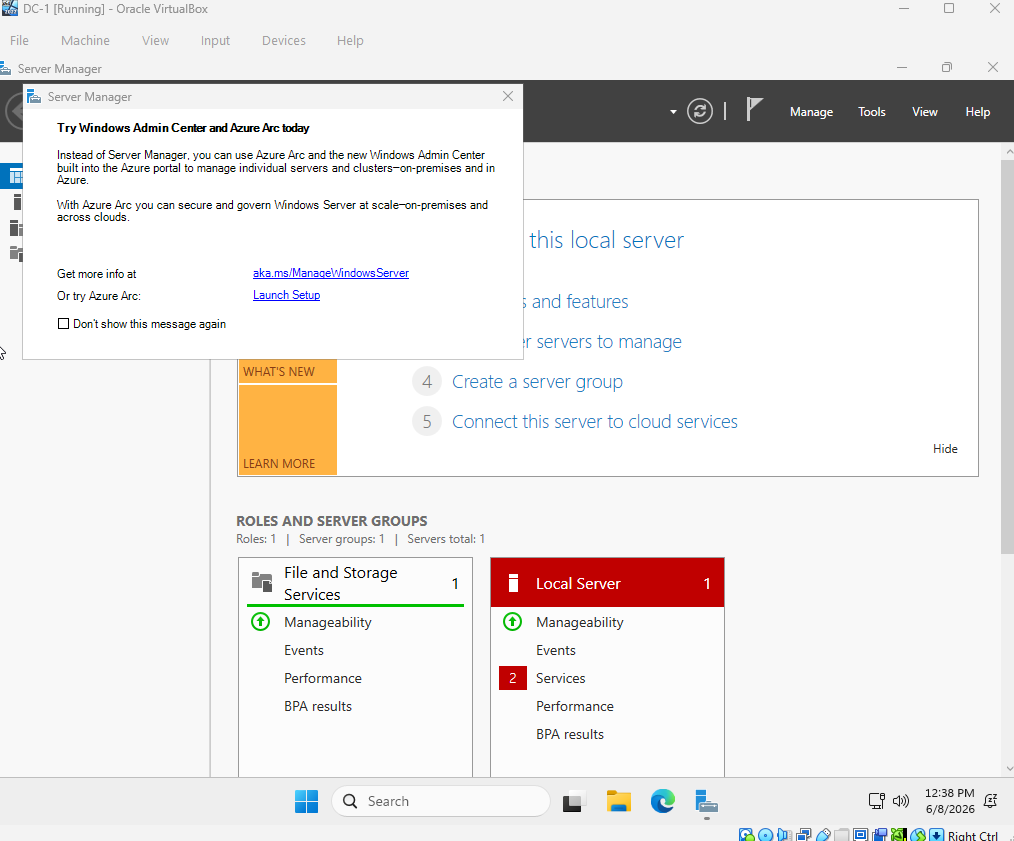
I will be using VirtualBox to create a Microsoft Server VM. Similar to creating the Windows machine in the other post, we will download the iso file from Microsoft evaluation center.
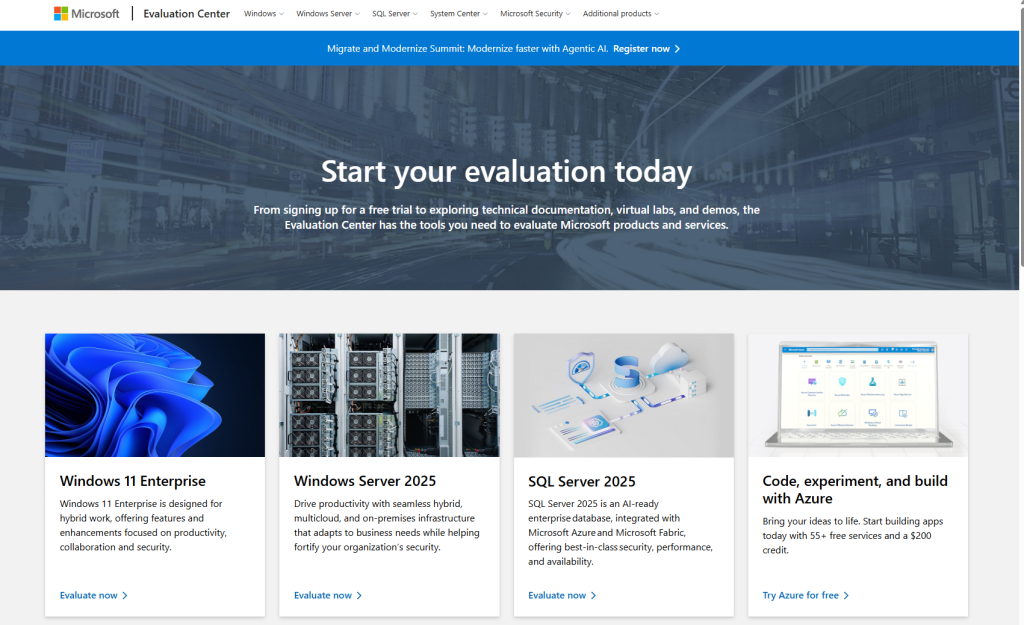
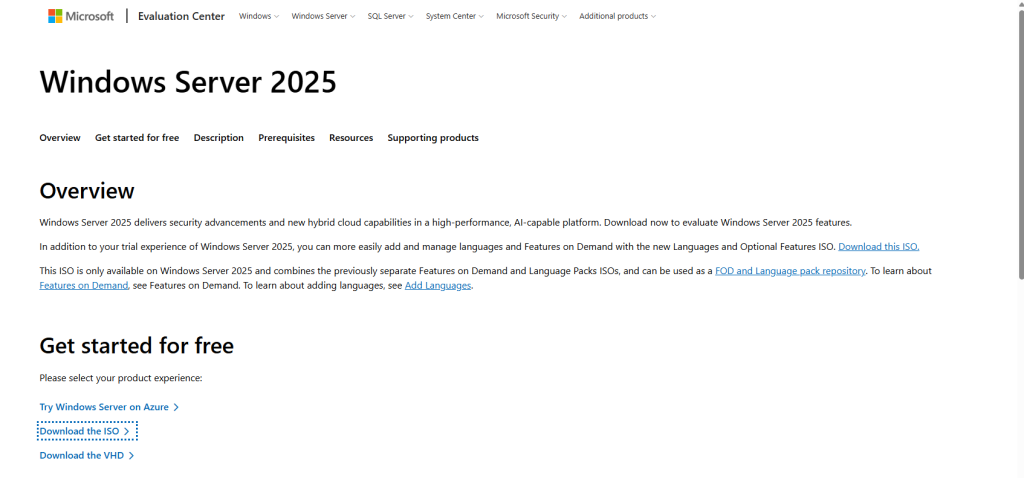
After clicking the link to download the iso file, you will need to fill in some information. After that, you will click next to select the which iso image you need.
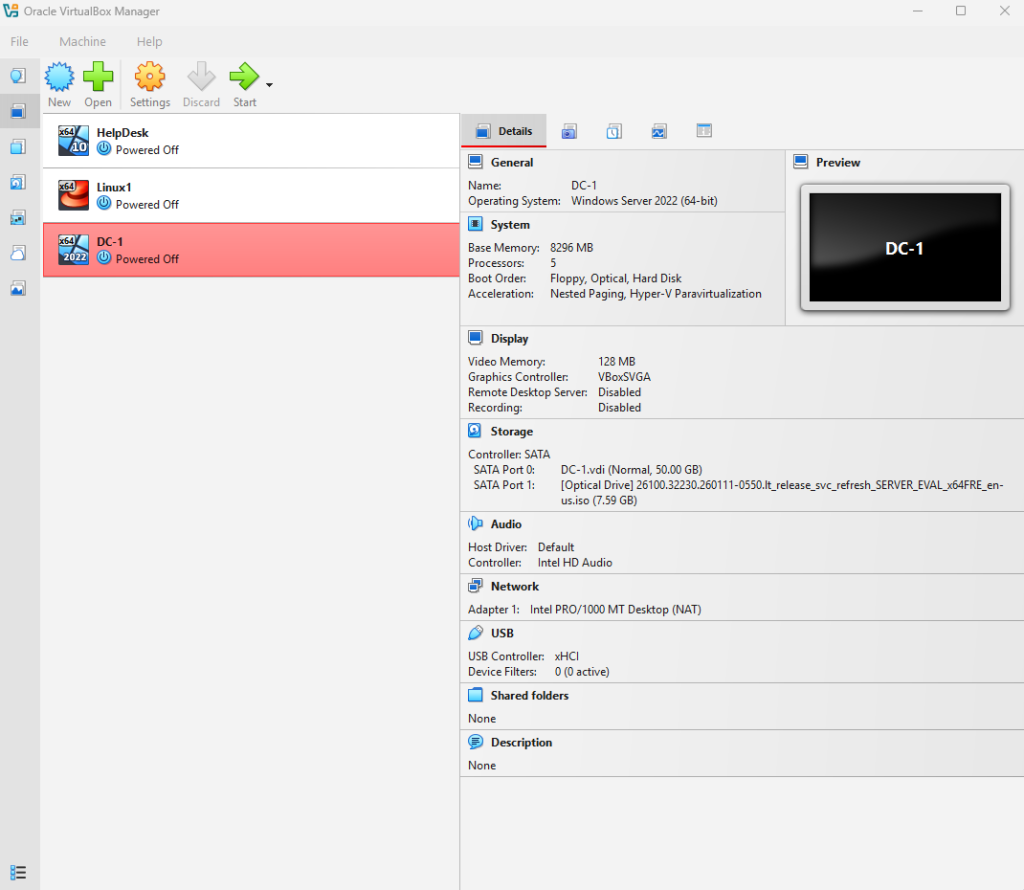
Once, your image has downloaded, we can open VirtualBox and start making the VM. Select “New” in the top left corner. Select the iso file you downloaded and then fill in all required boxes, which are name, password, and hardware settings. Be sure to base your hardware setting on your machine. If you have RAM and CPU cores to spare, the smoother the VM will run.
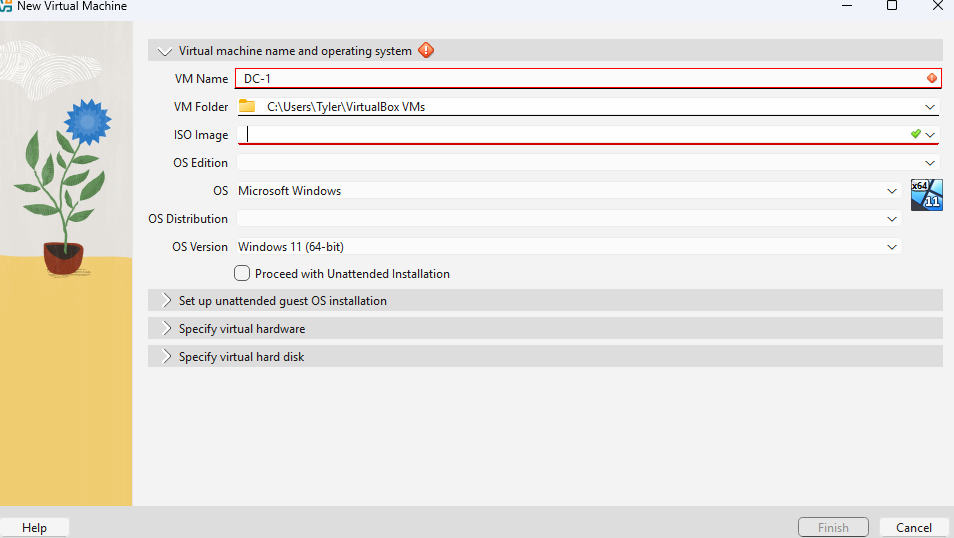
Once you have finished this, you will need to start up your new VM. You can start going through the basic setup once it starts.
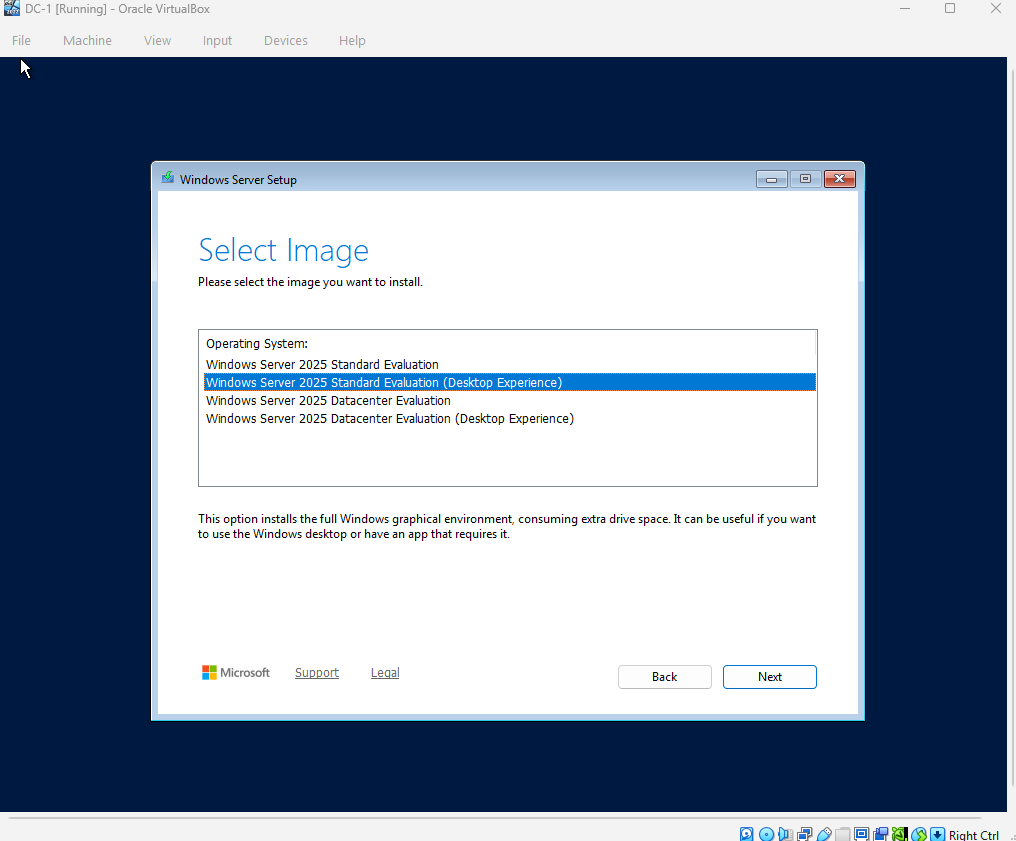
For this lab, we will be using the Desktop Experience.
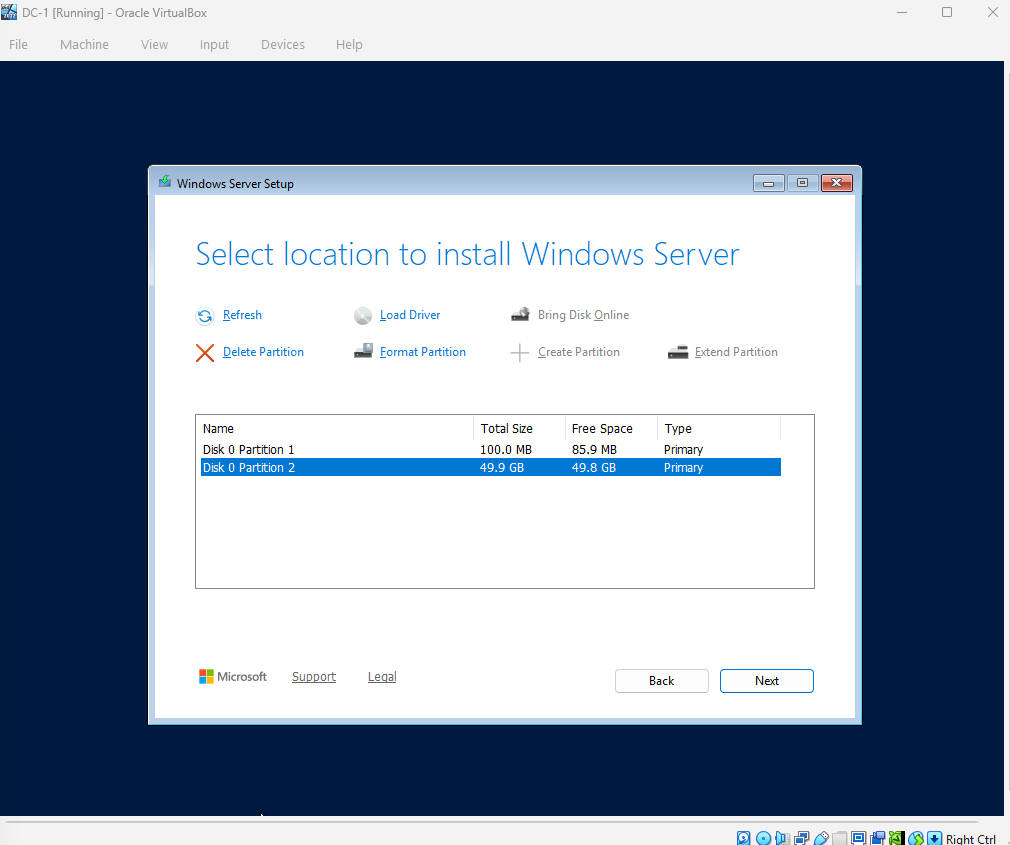
Be sure to use the larger space that was allocated for your server. You will receive an error if you select storage that is too small for the OS.
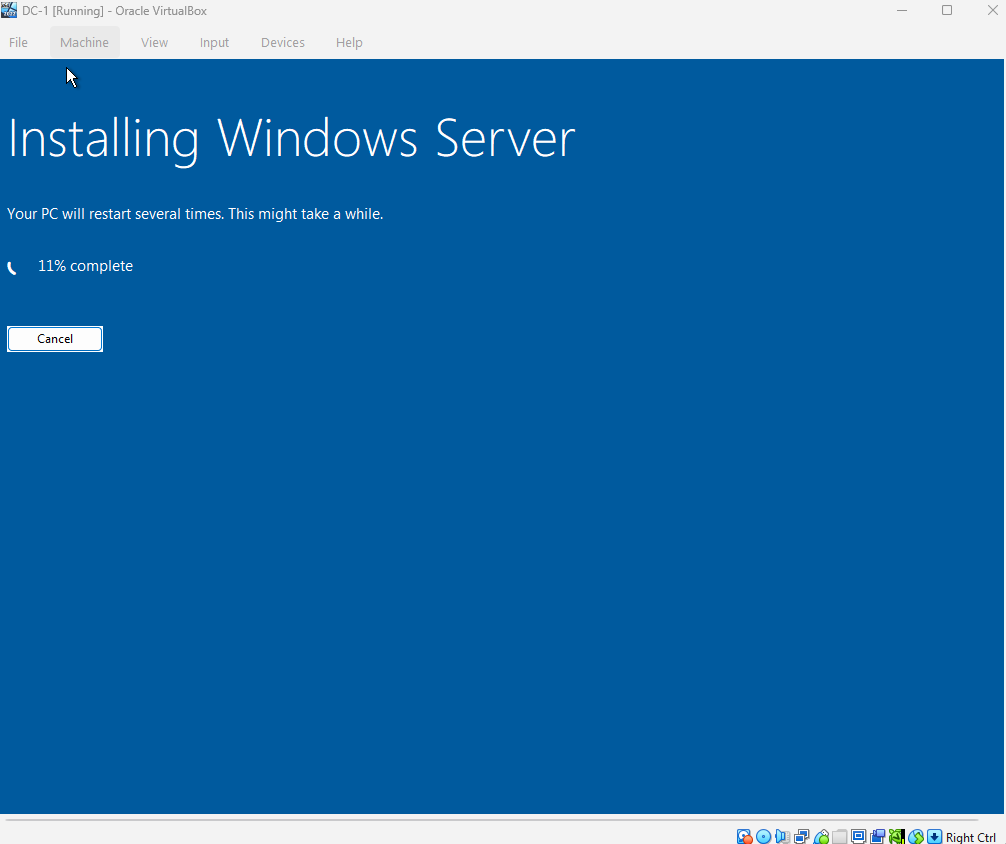
Continuing through the installation process, it will start installing the server. This may take some time.
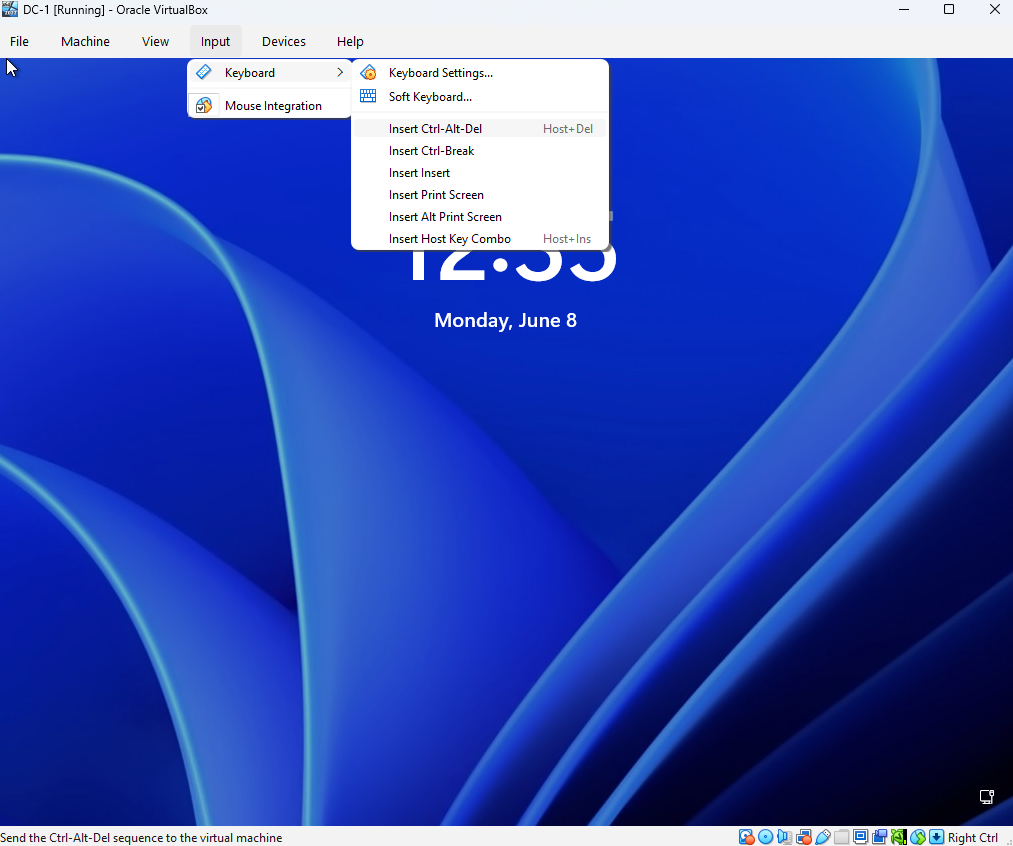
Once everything has finished installing, you can log into your new machine. You will have to enter Ctl+Alt+Del to unlock the screen. This can be done on the VM through the input tab.
Once logged in, Server Manger will automatically load and display. You now have your Windows Server successfully downloaded.