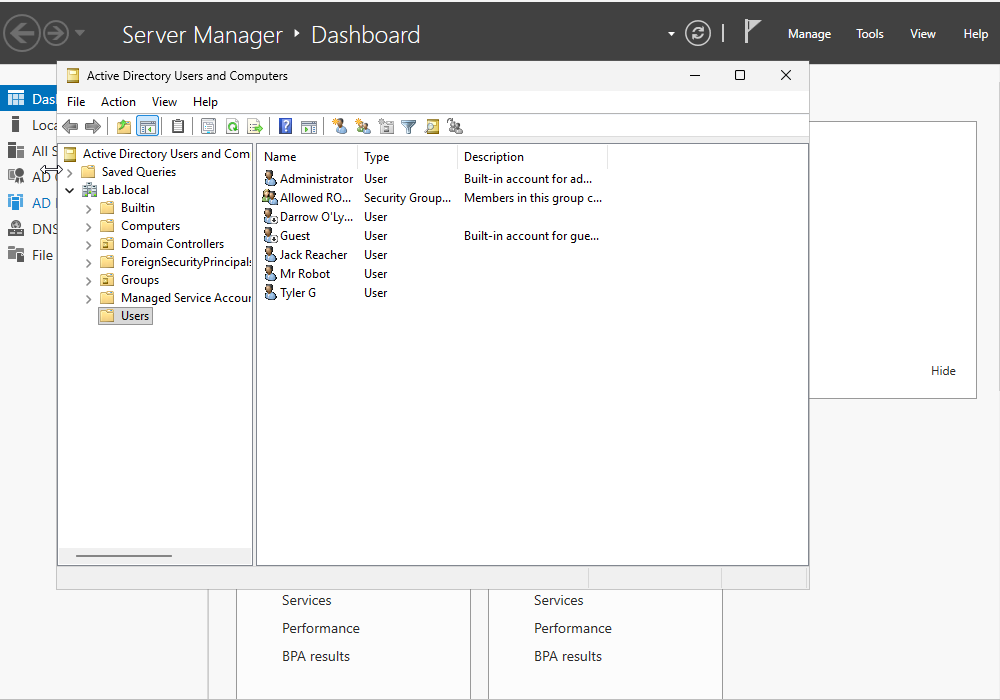
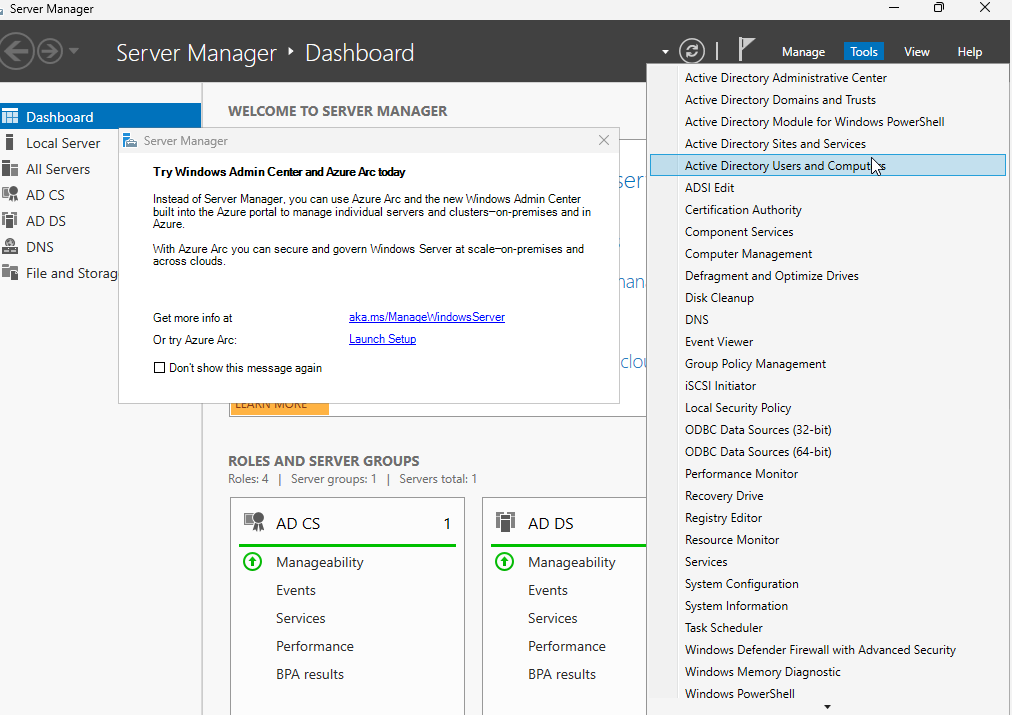
This will be a short part of the lab that focuses on cleaning up default groups and creating domain users. Lets go into our server manager and select “Active Directory Users and Computers” under the Tools tab.
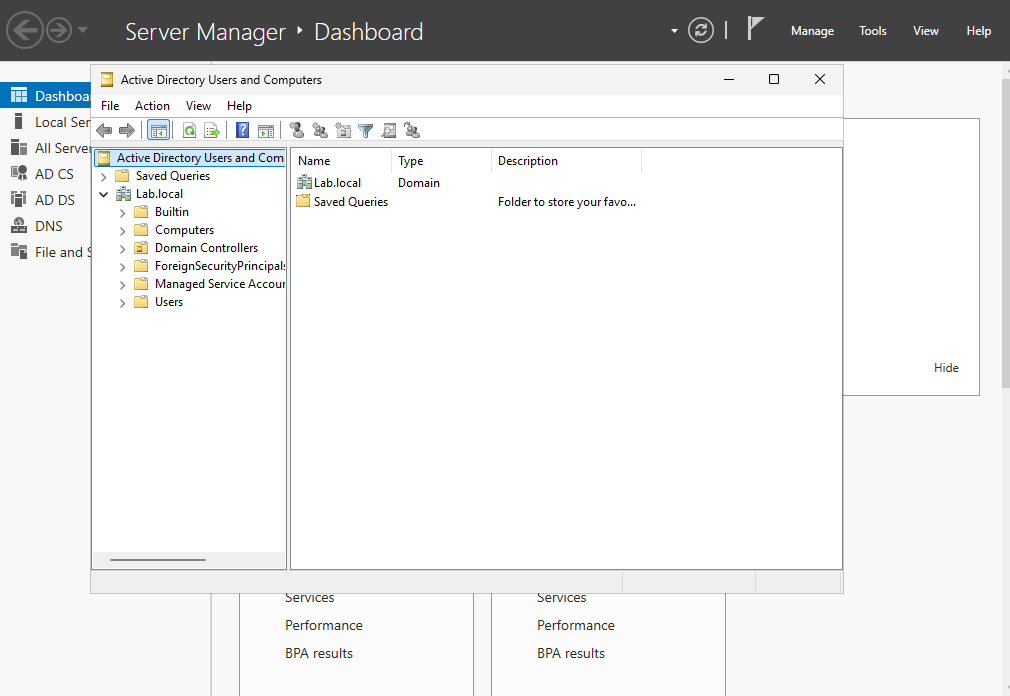
Once this launches, we can see the domain that we added in the previous portion of the lab.
Lets look in the Users folder. All of these users and groups are there by default.
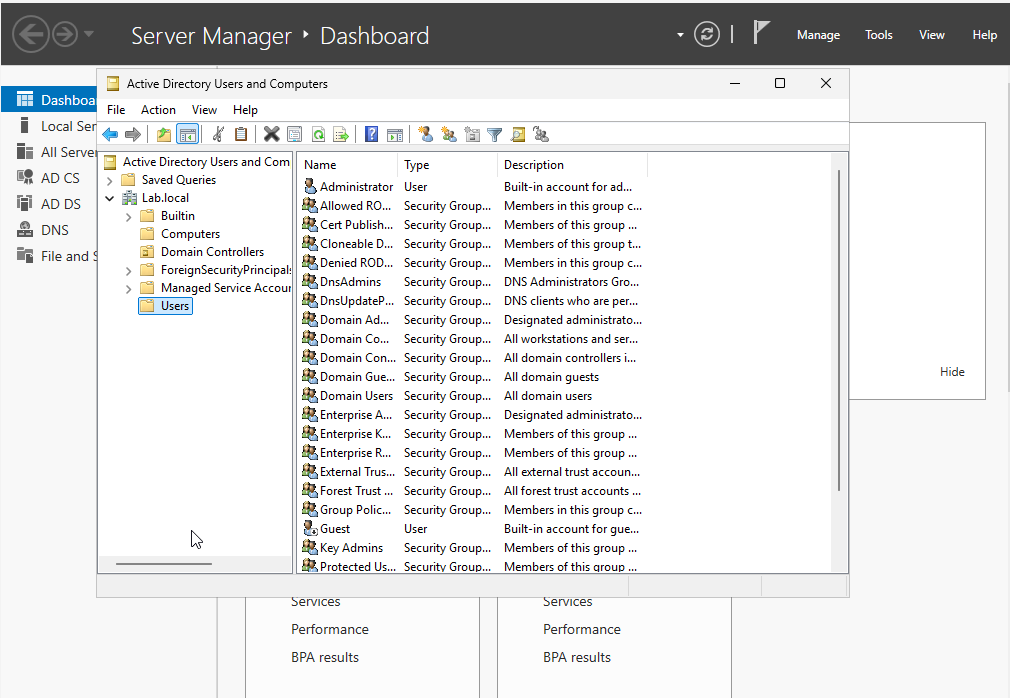
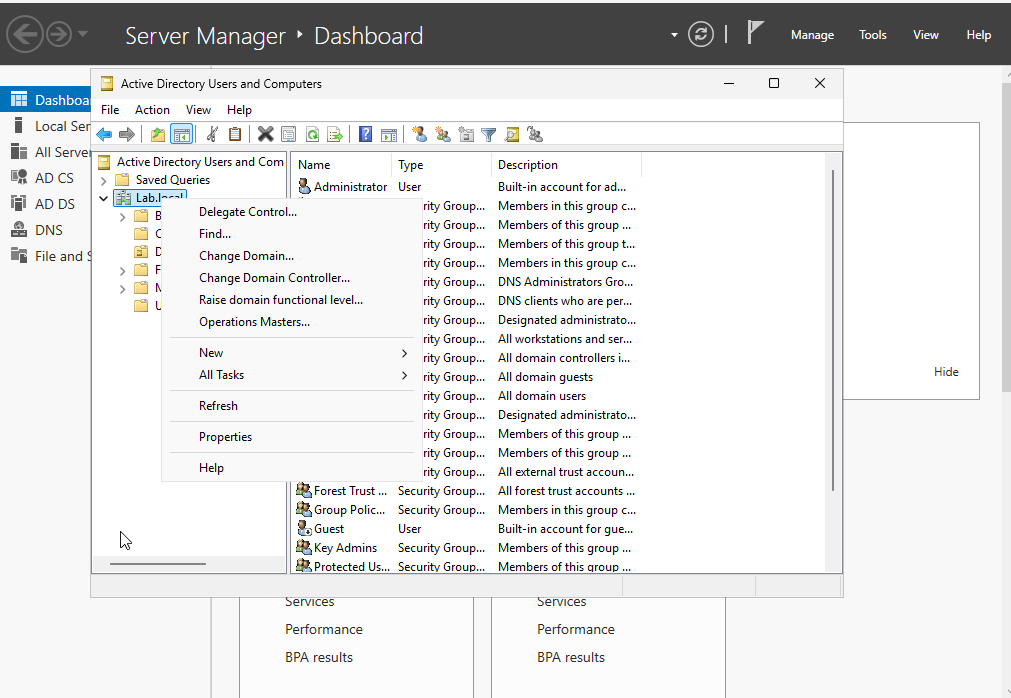
We can clean this up by placing all the default security groups in a separate folder. Right click under the domain and select New and then Organizational Unit (OU).
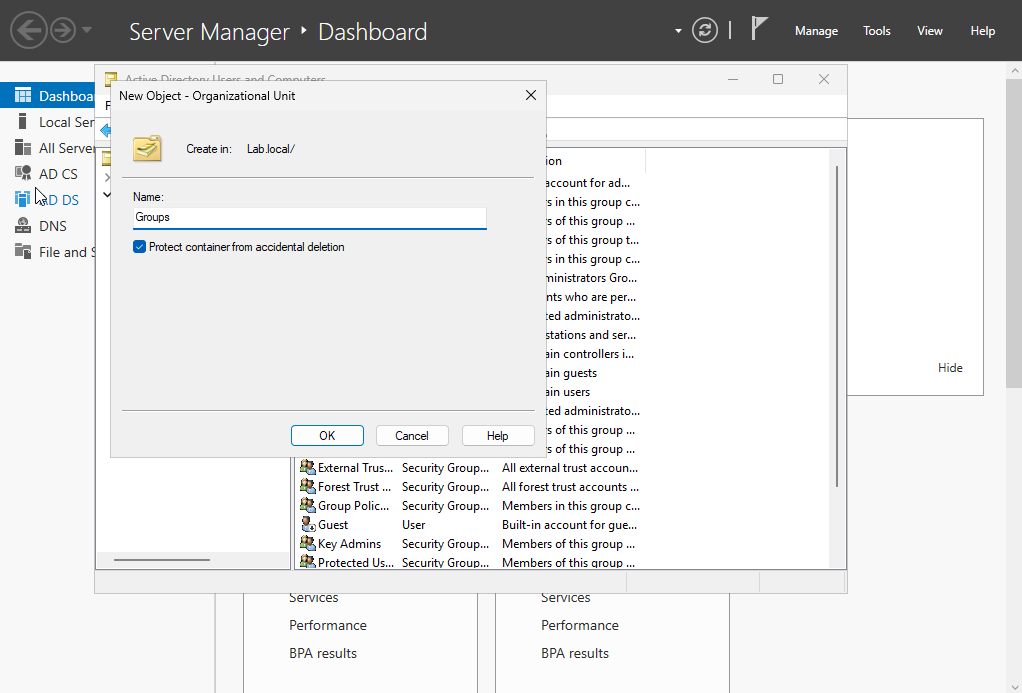
Name the new OU. This is where we will move all of the default security groups.
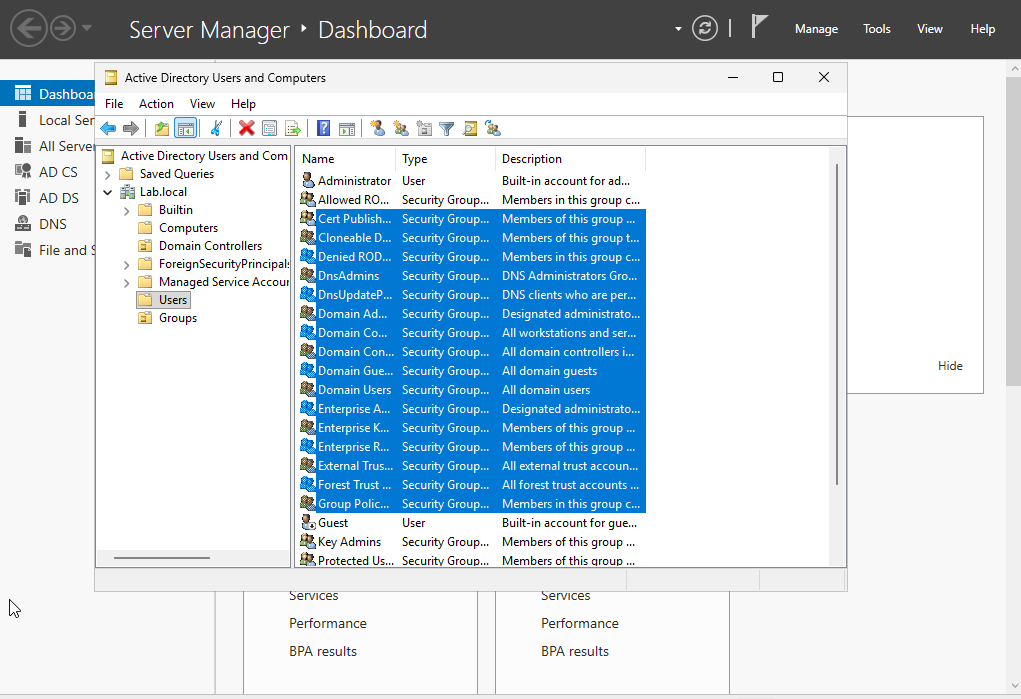
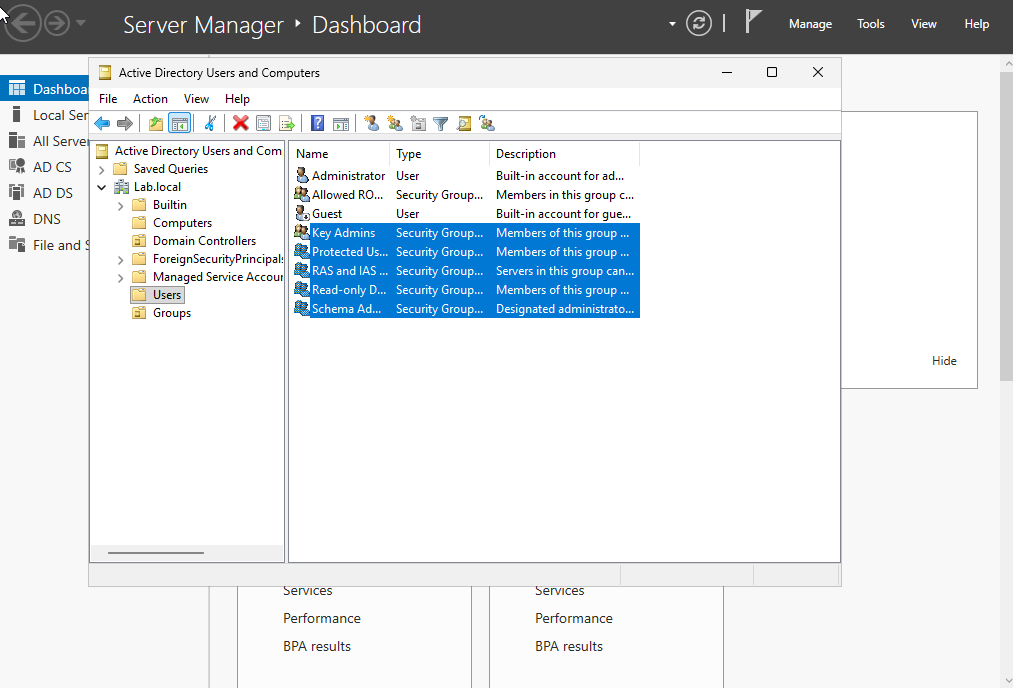
Select the security groups you wish to move. You can click the first one in the list. Then select the bottom one with ctrl + Shift and left click to automatically select all groups between them. Drag the selected groups to the new OU.
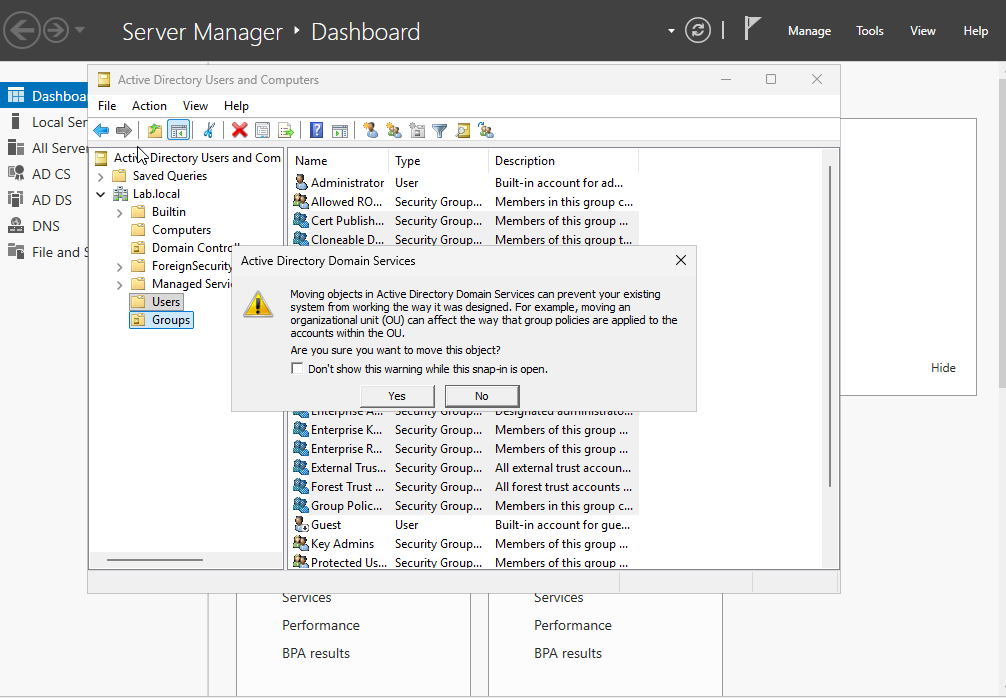
This warning will populate. Select yes. If you are moving groups or users to different OUs, realize that permissions may change due to the difference in group policy objects that may be applied to the new OU.
There is another set of default security groups at the bottom that we can also move.
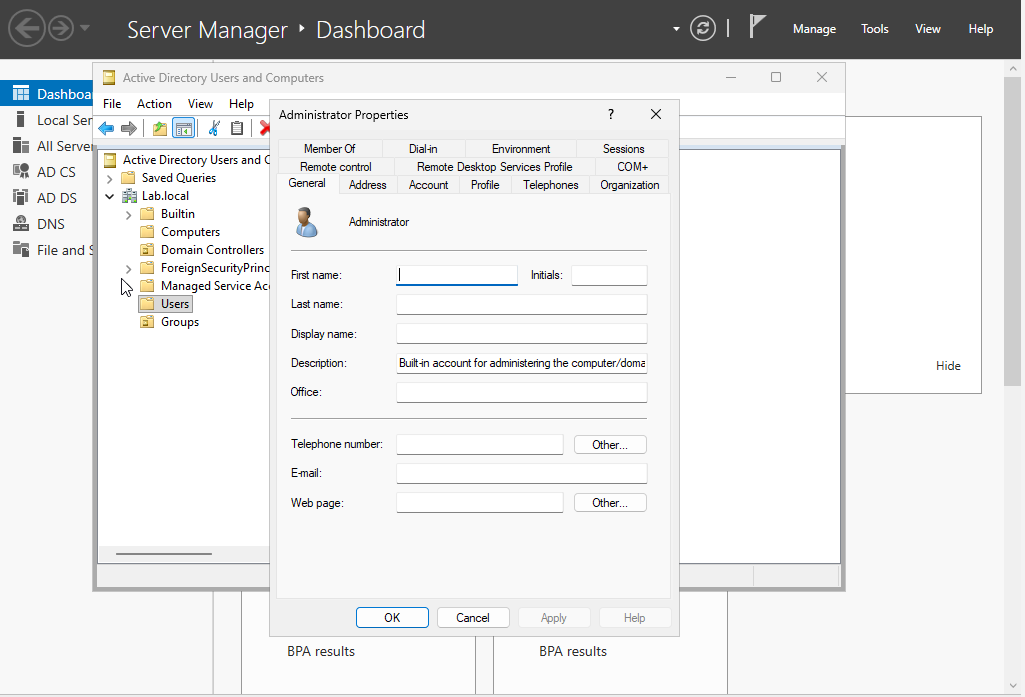
Note: The account you created when deploying this VM is the administrator account. We can see under the properties of this account that it is also a domain administrator. It is not good practice to always log in as an admin. Also, default accounts should be addressed as well to decrease the attack area and unneeded accounts/permissions.
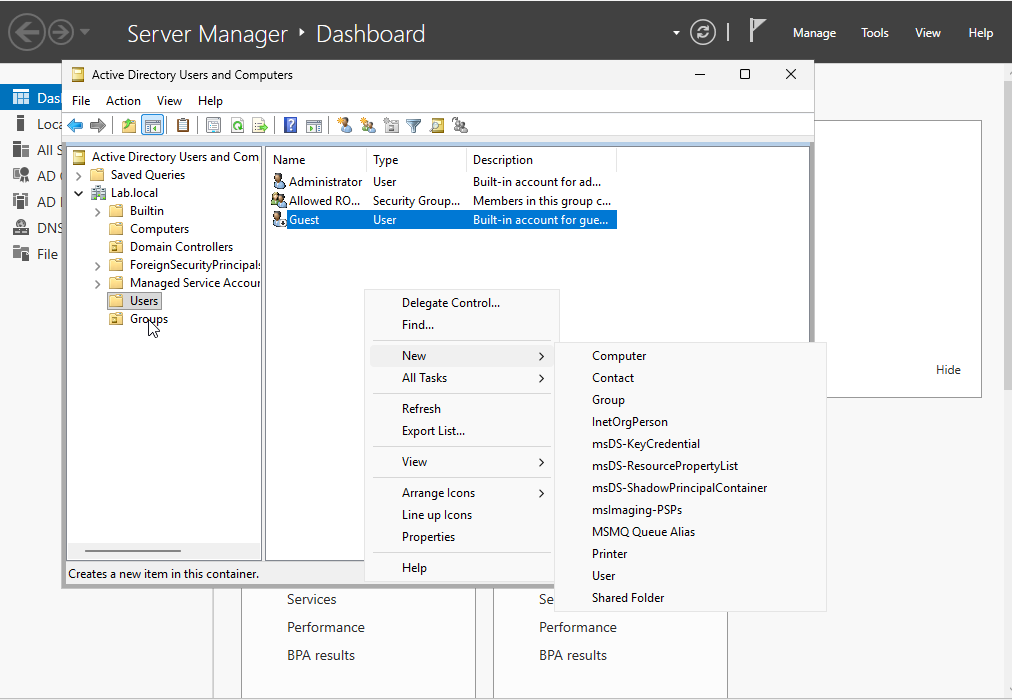
Next, we will create new users. Right click in the space below the users list. Select New and User.
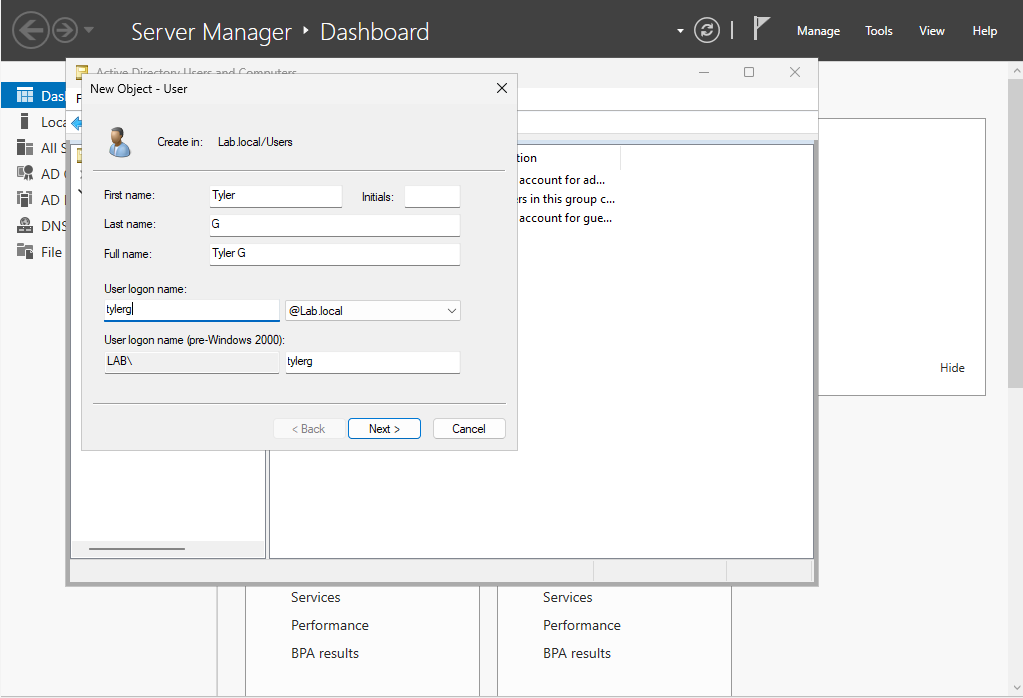
Fill in the information. I will be creating three more users for this lab. Feel free to make up different names.
Create a password. In a real-world setting, a random password will be generated and given to the user via a secure means of communication. The box that is selected will force the user to change their password when they login next. Since this is a lab environment, we can uncheck.
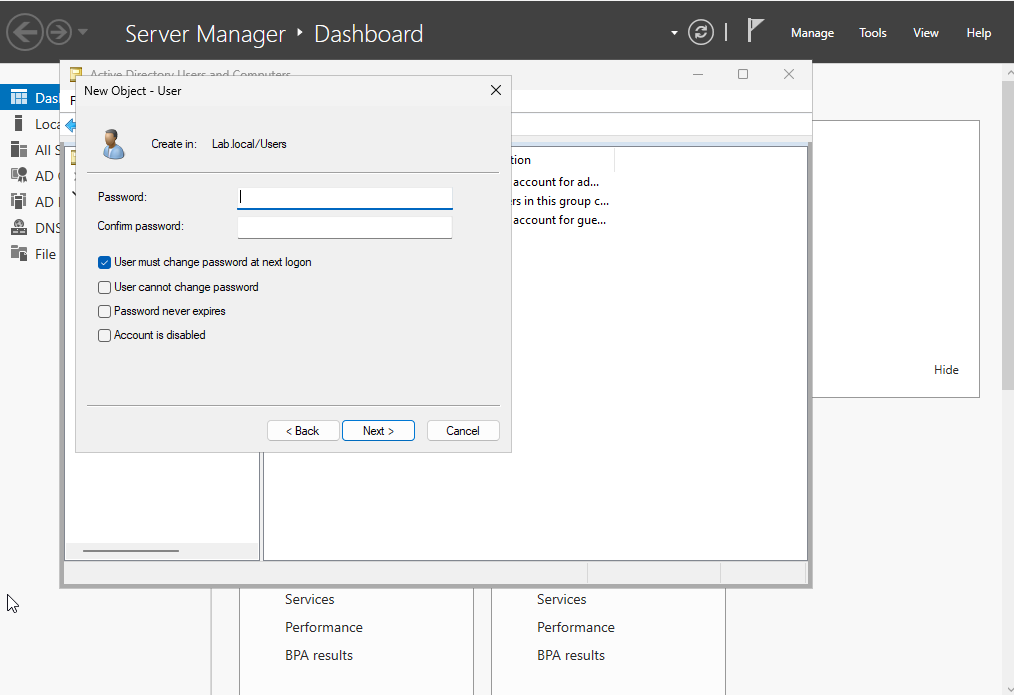
We can create users by right clicking on the user we created and then select copy. Repeat the previous steps until you have the amount of users you need.
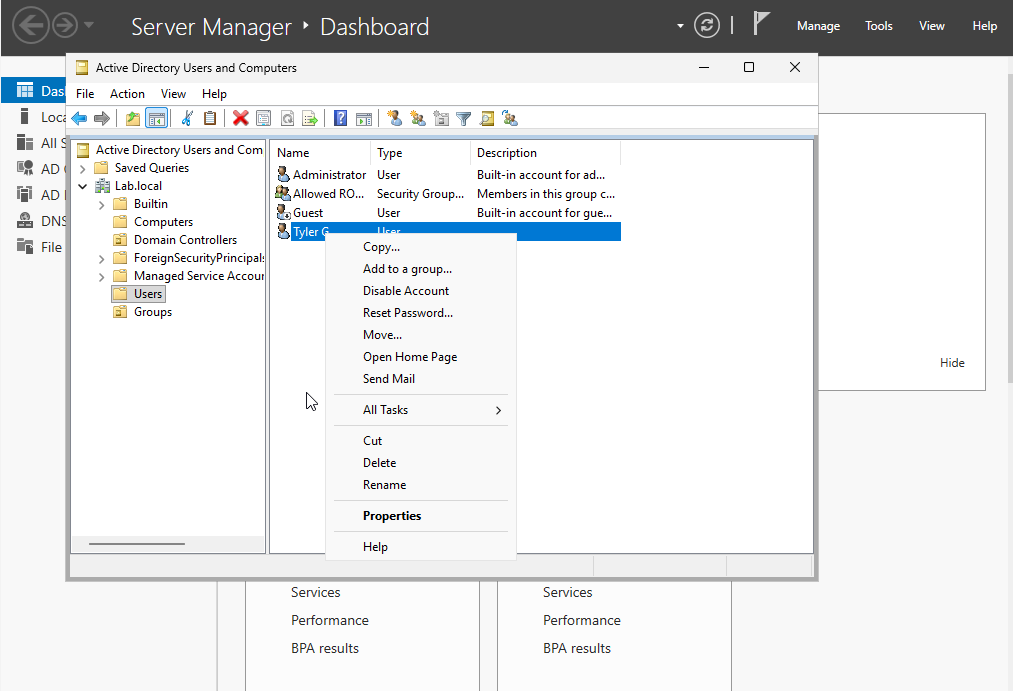
Here is my final product. I have added 4 users in total, which will be used in future labs.