
Start by logging into the DC server as the administrator. Press the Windows button and search PowerShell. Right click it and run as administrator.
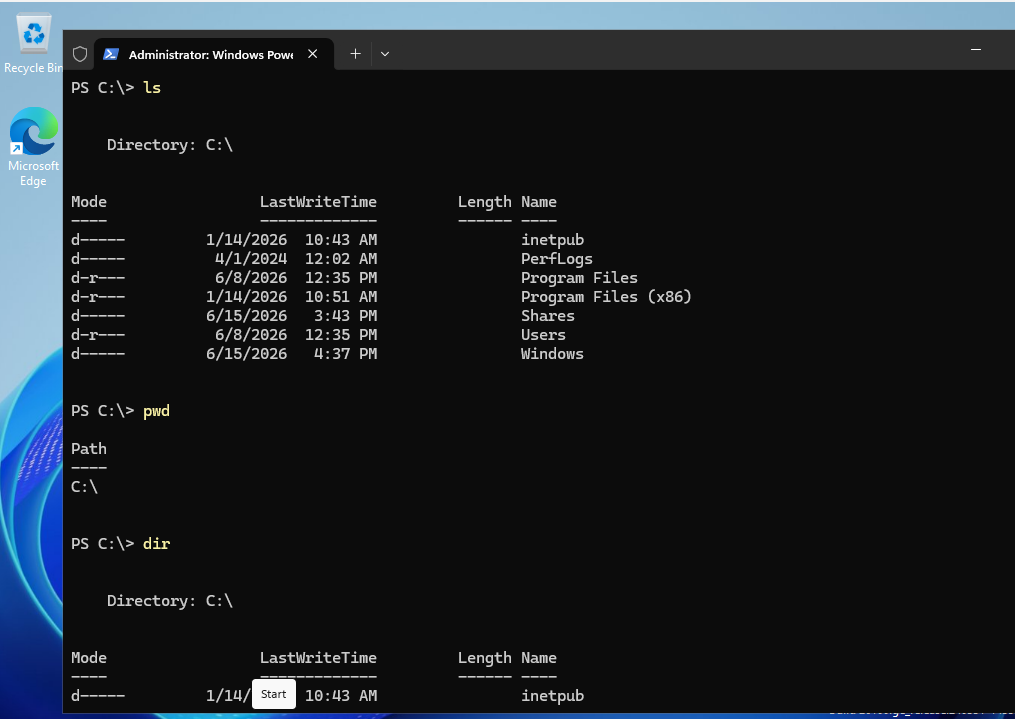
Starting off, lets notice that we can use some similar commands in PowerShell.
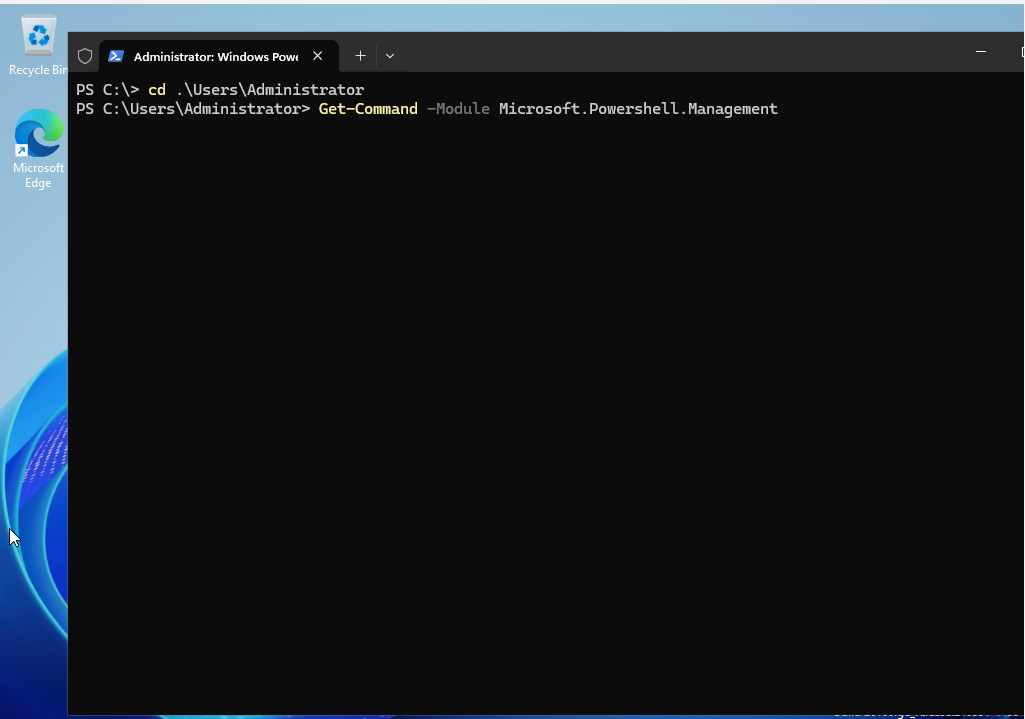
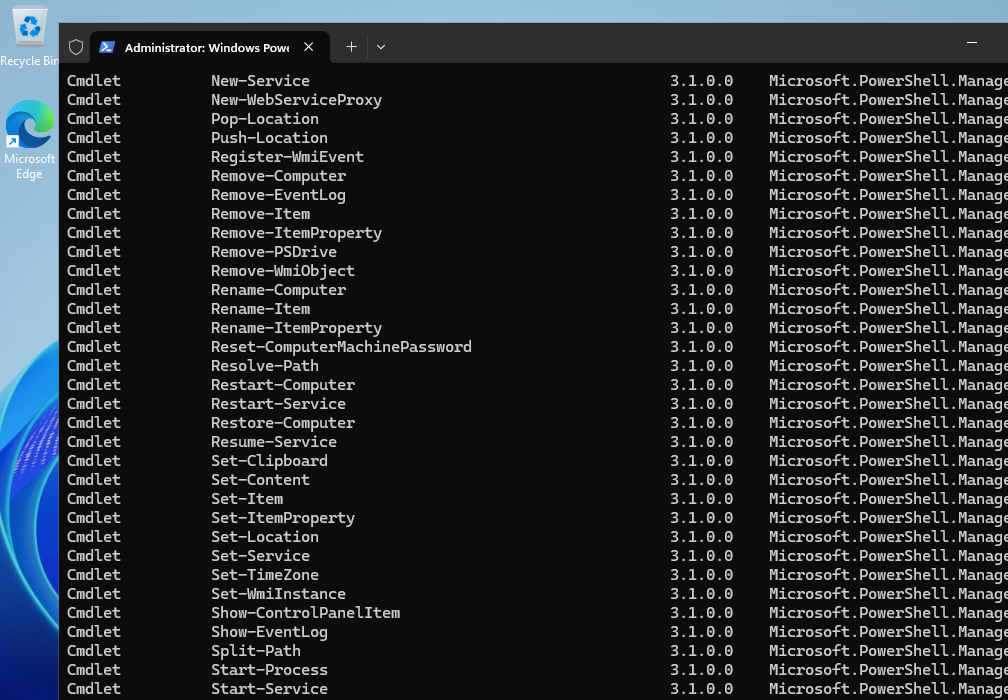
PowerShell uses cmdlets. These can be powerful tools for using enhanced functions of the operating system into effect. They use a capitalized verb-and-noun pair conjoined with a dash for the syntax. We can find a list of all the cmdlets with the following: Get-Command -Module Microsoft.Powershell.Management
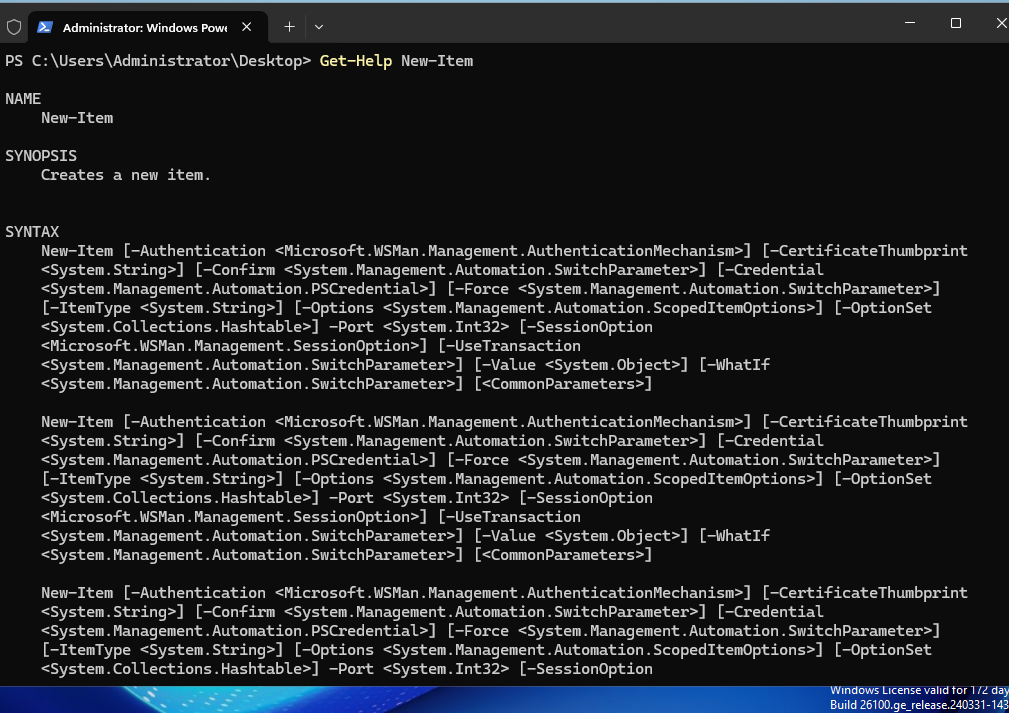
Next, we can find information on cmdlets with the Get-Help command. This is similar to bash –help and info command.
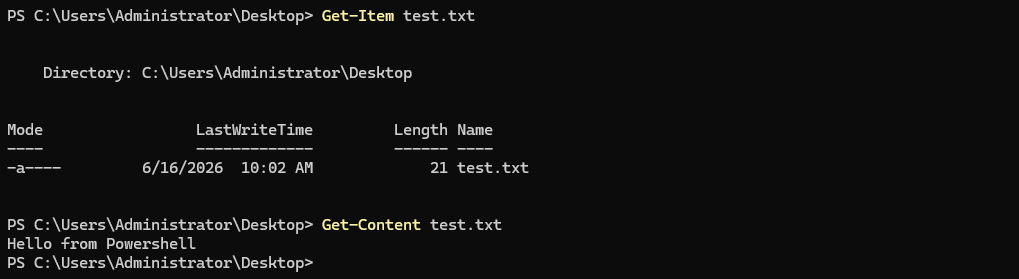
The “New-Item” cmdlet creates a file. As you seen in the command below, I used this to create a text file. You can use the “Get-Item” cmdlet to see information on the file and the “Get-Content” cmdlet to display the file’s information.

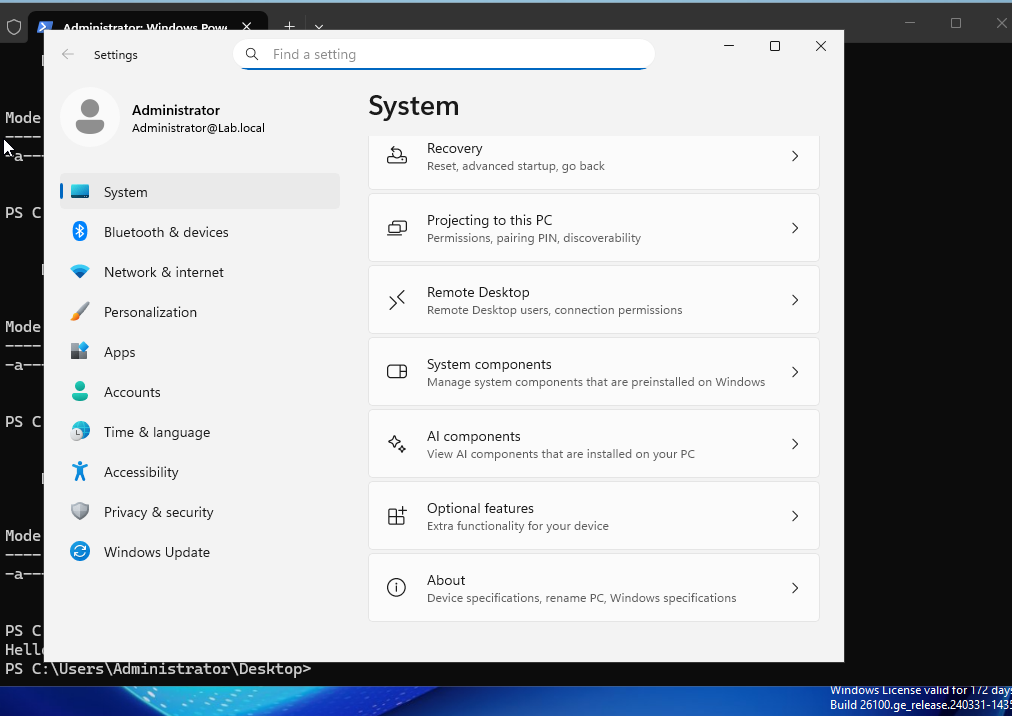
Next, we will download RSAT. Go to Setting, System, scroll to the bottom and click Optional features.
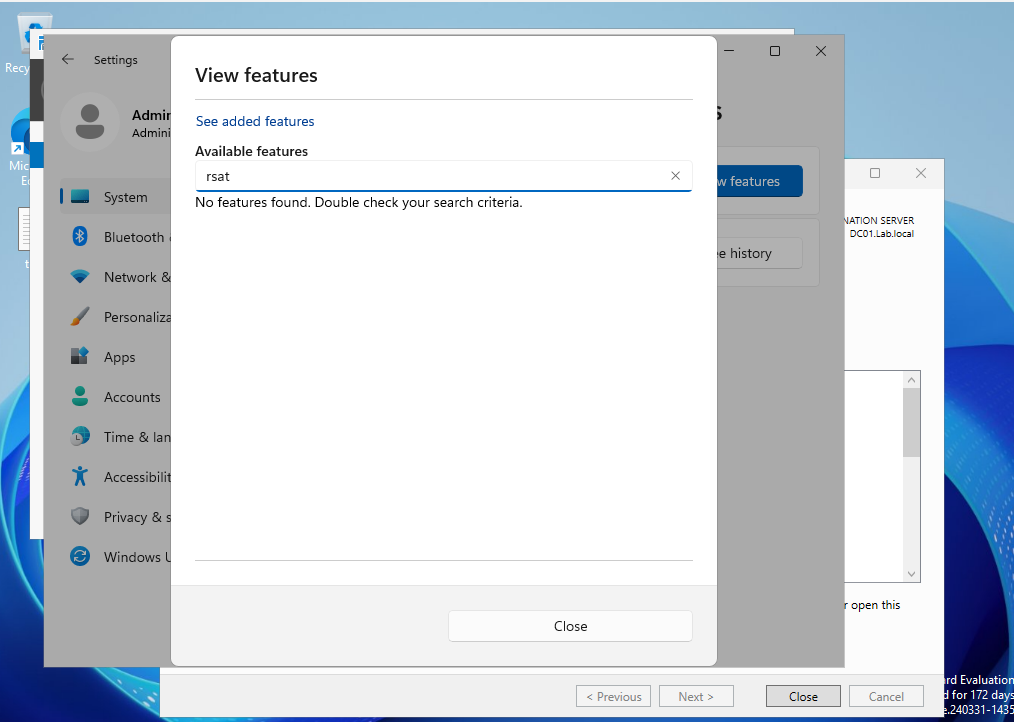
Search available features. I know in the screenshot that I am searching added features, but RSAT did not populate for me. If it does for you, add the feature.
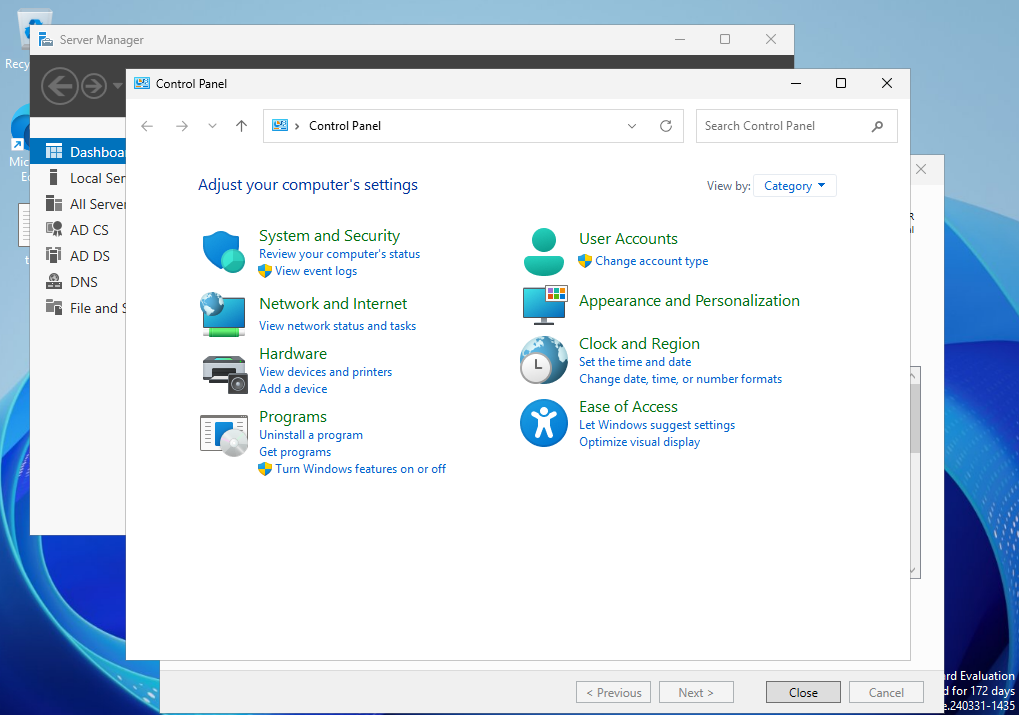
If RSAT did not populate for you, open control panel and select “Turn Windows features on or off” under Programs.
This will take you to the Add Roles and Features Wizard. keep the defaults for everything until you get to features. Select all the features under Feature Administration Tools. I kept the defaults for the rest of the installation.
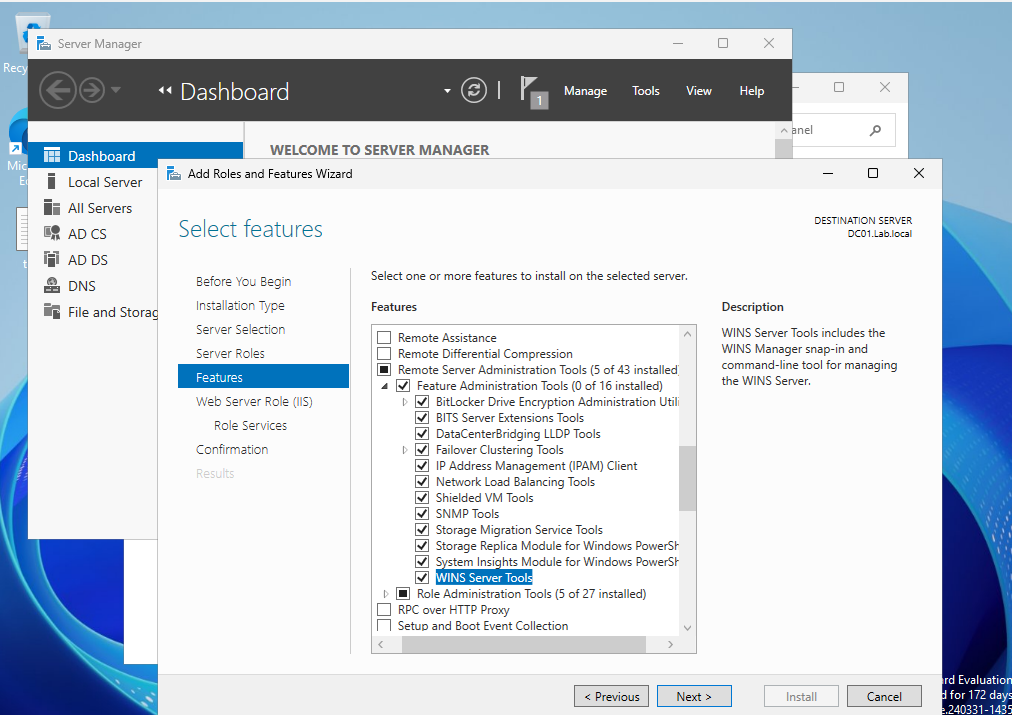
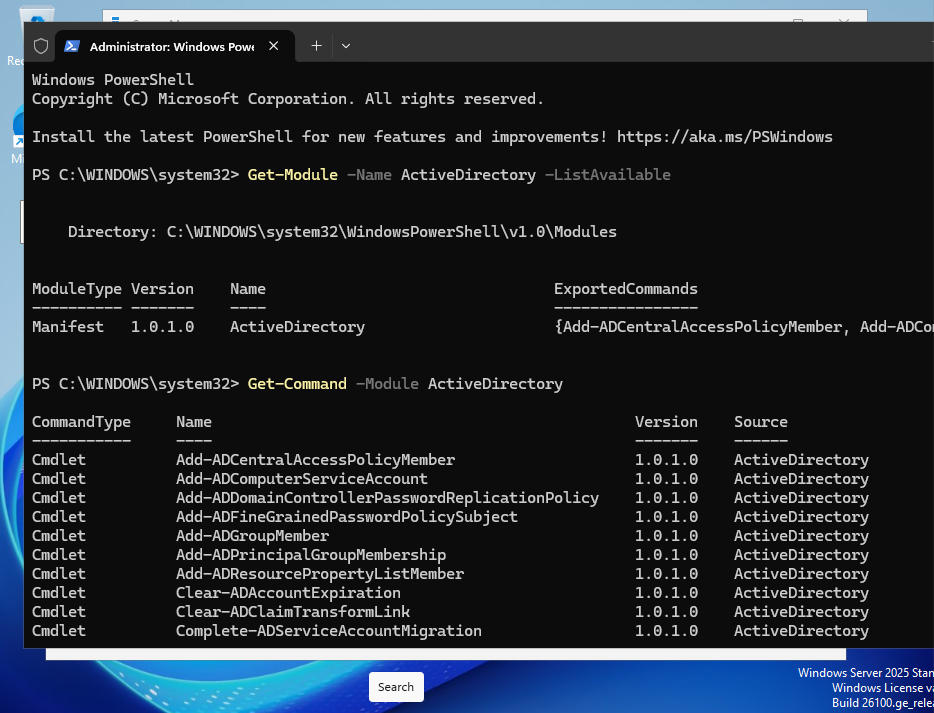
Once they have finished installing, we can run “Get-Module -Name ActiveDirectory -ListAvailable” to confirm that we have the module downloaded. We can look at all the cmdlets associated with this as well by running “Get-Module -Name ActiveDirectory -ListAvailable”
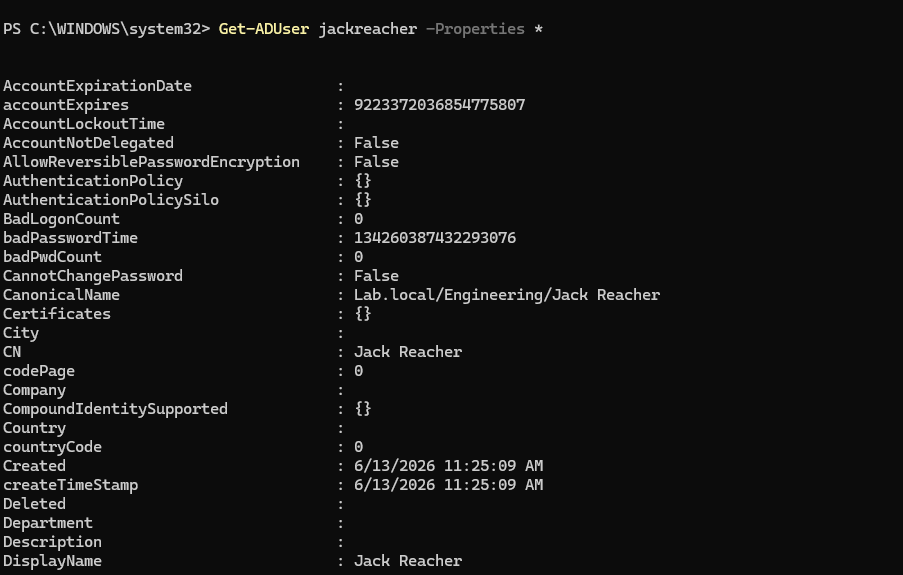
One usefule command is the Get-ADUser command. This can show a lot of details about users such as when there account was made, when they last logged in, when their password expires, etc. The command in the following screenshot is Get-ADUser jackreacher -Properties *
Keep in mind that the “*” will grab all the result pertaining to properties and jackreacher.
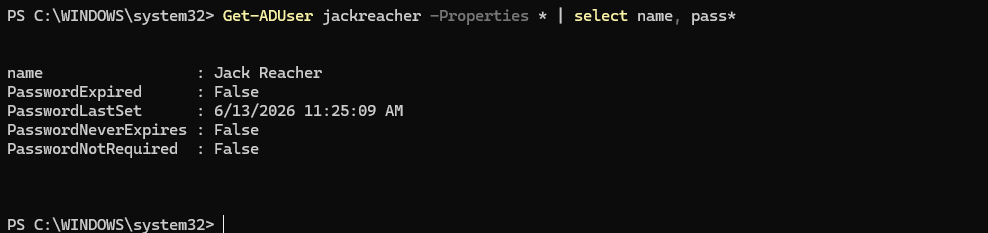
We can build on this command by piping the results to select specific details. In the screenshot below I used Get-ADUser jackreacher -Properties * | select name, pass*
This will give us the name and everything that starts with “pass”. This is useful to look up information on password details.
Thank you for reviewing this lab!